Find the Controls on Your C81
Select a control to zoom in and see what it does.
Zoomed View
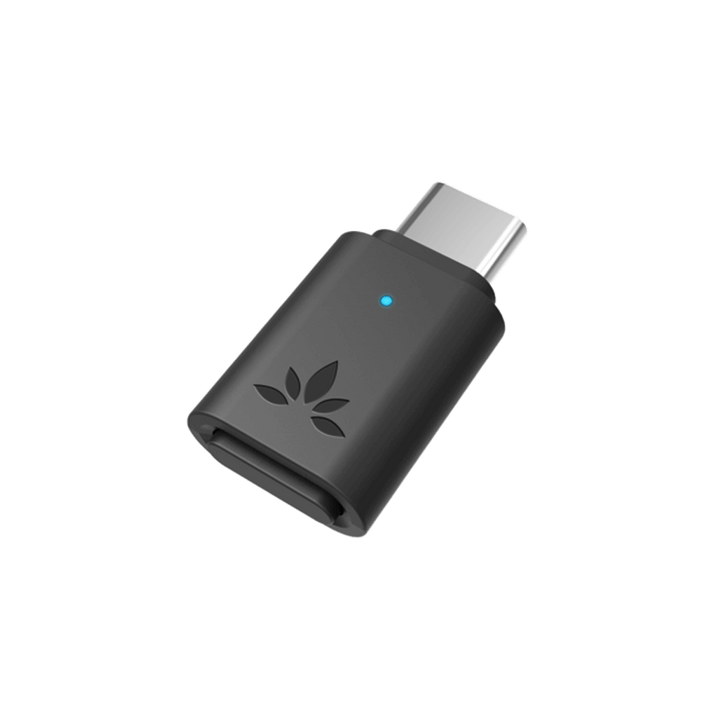
Select a control to zoom in and see where it is located on your C81.
1
START HERE
What do you want to check?
Select a button or indicator below. The photo will zoom in and the instructions will appear underneath.
SELECT A CONTROL
Click to zoom
Multi-function Button (MFB)
Pairing & Talk/Music Mode
›
LED Indicator
Pairing & connection status
›
Full Product View
Return to the full C81 photo
↺
2
WHAT IT DOES
SELECT A CONTROL
Your explanation will appear here
Choose the Multi-function Button (MFB) or LED Indicator above to see what it does and what its light means.
MULTI-FUNCTION BUTTON / MFB
Multi-function Button (MFB)
The Multi-function Button (MFB) is located at the bottom/front end of the C81. Use it for Bluetooth pairing and switching between Music Mode and Talk/Call Mode.
Press & Hold for About 2 Seconds
Puts the C81 into Bluetooth pairing mode.
Flashing Blue + White
The C81 is ready to pair with your Bluetooth headphones or earbuds.
Double-Tap the MFB
Switches between Music Mode and Talk/Call Mode.
Solid White = Talk/Call Mode
LED INDICATOR
What Does the LED Mean?
Match the light on your C81 with one of the indicators below.
Flashing Blue + White
Bluetooth pairing mode. The C81 is searching for your Bluetooth headphones or earbuds.
Solid Blue
Connected using aptX Adaptive or aptX Low Latency.
✓ Connected Successfully
✓ Connected Successfully
Flashing Blue
Connected using aptX HD, aptX, or SBC.
✓ Connected Successfully
✓ Connected Successfully
Solid White
Talk/Call Mode is active.
Important:
Flashing blue only is a connected status.
Flashing Blue + White means the C81 is in Bluetooth pairing mode.
How Do I Know It Connected?
Flashing Blue + White
= Searching / Pairing
↓
Solid Blue
= ✓ Connected
OR
Flashing Blue
= ✓ Connected
Something Doesn't Look Right?
C81 Keeps Flashing Blue + White?
The C81 is still searching for a Bluetooth device.
Make sure your headphones are in
Bluetooth pairing mode,
not simply powered on.
Headphones Won't Connect?
Temporarily turn Bluetooth
OFF
on nearby phones, tablets, TVs, or computers that your headphones have previously connected to.
Keep your headphones close to the C81. Then press and hold the Multi-function Button (MFB) for about 2 seconds to try pairing again.
Keep your headphones close to the C81. Then press and hold the Multi-function Button (MFB) for about 2 seconds to try pairing again.
Connected but No Sound?
If the LED is
solid blue
or
flashing blue,
the Bluetooth connection has been established.
Play some audio and check the audio output settings on your source device.
Play some audio and check the audio output settings on your source device.
Still Need Help?
If your C81 still won't pair or you're not getting audio, contact Avantree Support.
Please include the brand and exact model of your headphones or earbuds so we can provide the correct instructions for your setup.
Contact Avantree Support
Comments
0 comments
Related articles
Please sign in to leave a comment.