Some TVs use eARC by default, which can cause audio issues with devices like HDMI audio converters or transmitters (e.g., HAX06, Crescendo). Turning eARC off lets your TV send simpler ARC audio that is more compatible with these devices.
Quick Check
● Open your TV Settings
● Go to Sound / Audio section
● Find eARC / HDMI‑eARC Mode and Set eARC → Off
● If you can’t find it: check your TV’s manual
Why This Happens
● eARC is on by default → many TVs enable it automatically
● Some transmitters don’t support eARC → they need plain ARC audio
● Converter or transmitter (HAX06/Crescendo) → works only with eARC Off
● Audio format not compatible → needs PCM/ARC output
💡 Tip: Where to find the eARC setting on popular TVs:
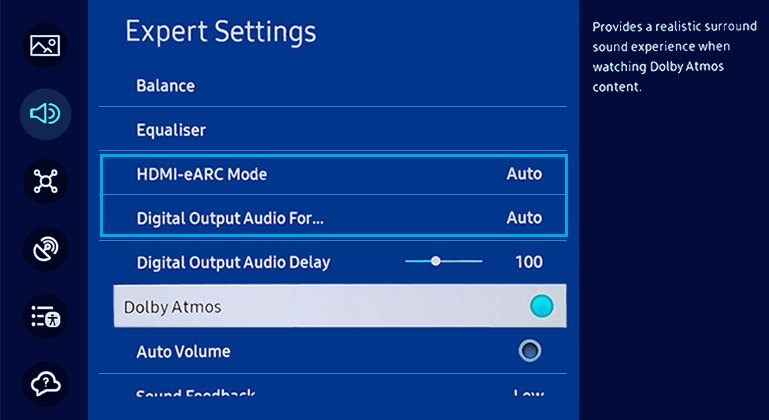
Samsung TVs:
Settings > Sound > Expert Settings > HDMI-eARC Mode → Off
Sony TVs:
Settings > Sound or Display & Sound > Audio Output > eARC Mode → Off
LG TVs:
Settings > Sound > Additional Settings > eARC → Off
TCL TVs:
Settings > Channels & Inputs > Inputs > HDMI Advanced Standard → Off
Vizio TVs:
Menu > Audio > eARC → Off
Still not working?
● Make sure you’re adjusting the settings for the correct HDMI port
● Restart the TV after changing the eARC setting
● Contact us at ✉️ support@avantree.com and provide the model of your TV
Comments
0 comments
Related articles
Please sign in to leave a comment.