START HERE
Boombyte – FM Only Searches 76–90 MHz? Change the FM Band
If your Boombyte only searches between 76–90 MHz, it is likely set to Campus Band.
This is a setting, not a problem with your radio.
For the normal FM range, change the FM band to Common Band.
Change to Common Band
1
Open FM Radio
Switch your Boombyte to FM Radio mode.
2
Open FM Settings
Press the ⚙️ / OK button once to open the FM Radio settings.
3
Find Common Band
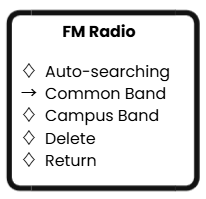
Press < SEEK or SEEK > until Common Band appears on the screen.
4
Confirm
Press ⚙️ / OK again to select Common Band.
✓ Done. Your Boombyte can now search the normal FM range: 87–108 MHz.
Quick Check
Only getting 76–90 MHz?
Campus Band is selected.
Campus Band is selected.
Want the normal FM range?
Select Common Band.
Select Common Band.
Common Band: 87–108 MHz
Still Missing FM Stations?
After changing to Common Band:
- Fully extend the FM antenna.
- Move the Boombyte near a window or open area.
- Keep it away from Wi-Fi routers, TVs, computers, and other electronics.
- Run the FM station scan again.
Still finding only a few stations? The issue may be FM reception rather than the FM band setting.
Need More Boombyte Help?
View Boombyte GuidesStill Need Help?
If your Boombyte still cannot find FM stations after selecting Common Band and scanning again, please tell us which FM station or frequency you are trying to receive and submit a support request.
Contact Avantree Support
Comments
0 comments
Related articles
Please sign in to leave a comment.